Advertisement
Click to download now, finish the installation quickly, and directly unlock the all-round experience
Advertisement
Screenshots
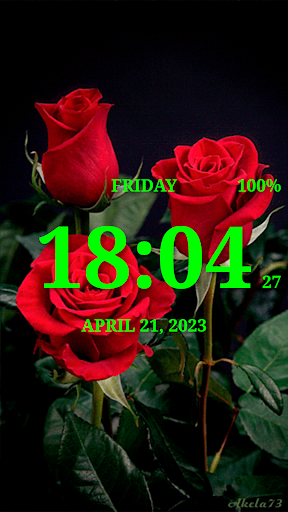
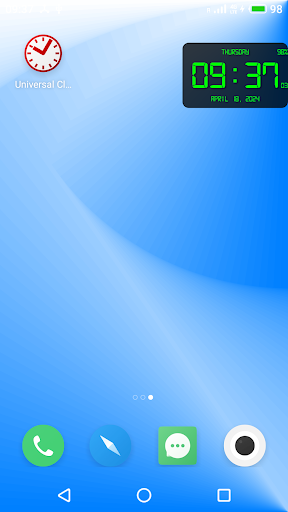
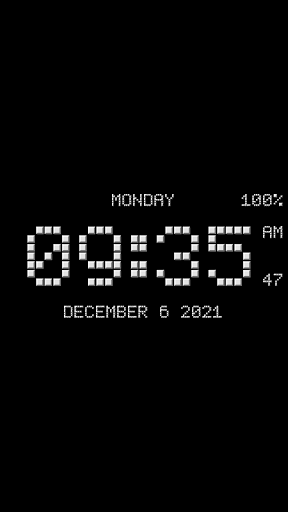
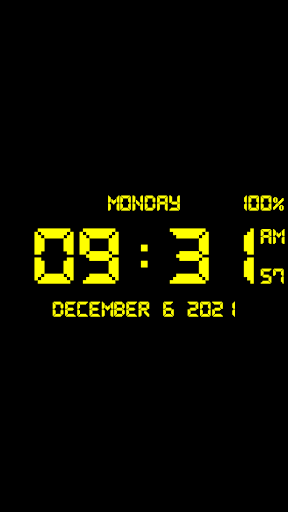
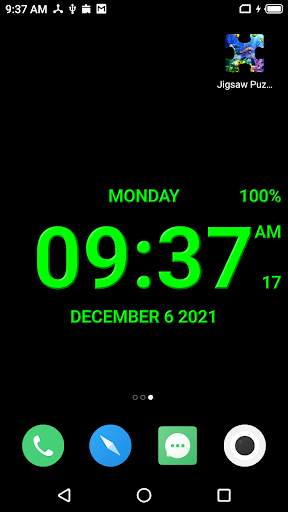
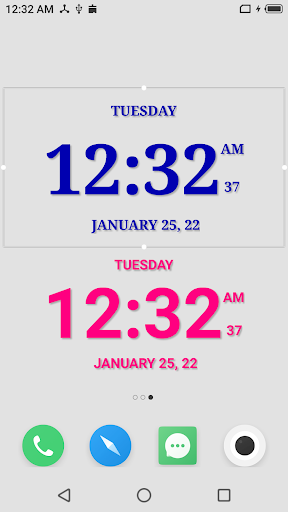
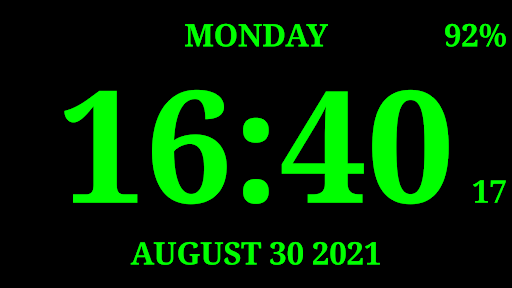
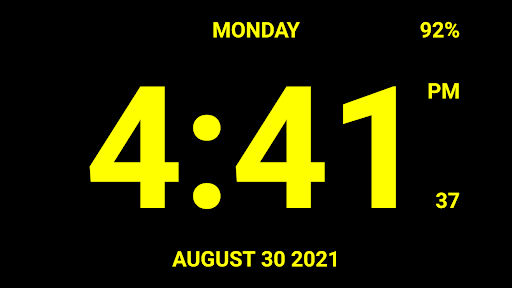
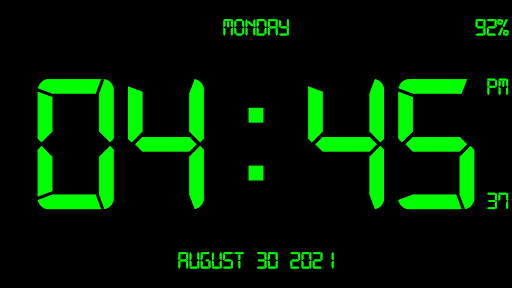
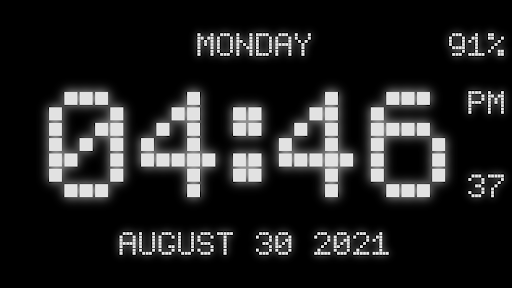
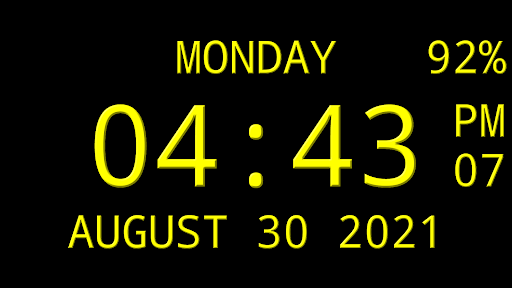
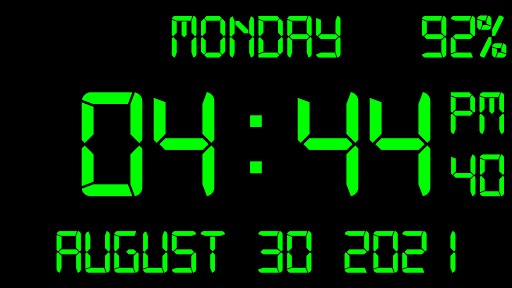
Click to download now, finish the installation quickly, and directly unlock the all-round experience
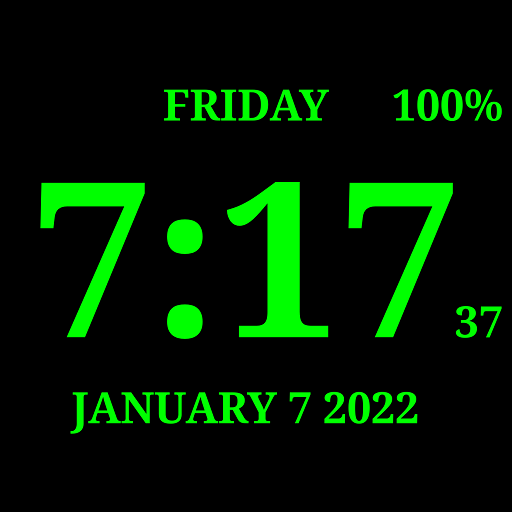
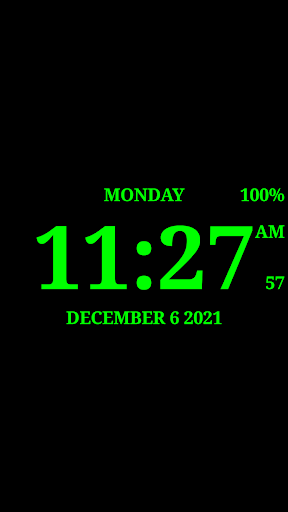
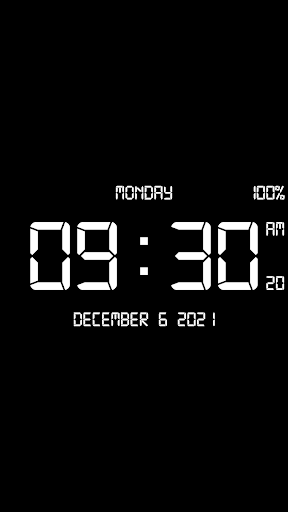
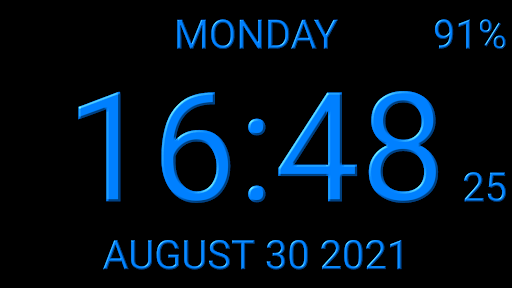
Digital Clock Live Wallpaper-7 puts a customizable digital clock on your phone’s wallpaper, with options for its size and position. It also offers a home-screen widget and several ways to keep a clock visible while you use the device. It suits people who want the time at a glance, or who sometimes use a phone as a desk clock. The app is by Style-7; its 4.17 rating comes from about 45,000 ratings, and it has 10 million-plus installs.
The live wallpaper is the most direct option: set the clock on the home screen or lock screen, then adjust how it looks and where it sits. If you prefer a smaller element among your app icons, add a clock widget; it can show seconds, and each widget can have its own font and color. Standard Android resizing tools control its size.
Other modes serve more specific situations:
Choose from 15 fonts, including digital styles, and show or hide details such as seconds, the year, date, weekday, month, and battery percentage. You can also show the time set for the next alarm instead of a date. These choices are useful if you want a glanceable display with only the details you care about; if you just need the time, most of the extra controls can be ignored.
Start with the wallpaper or widget if you want a persistent time display without changing how you use the phone. Use the screensaver or fullscreen mode for a stationary clock, and floating or picture-in-picture modes when you need the time visible over other content. The app’s several display modes are options, not requirements: there is no need to configure them all.